Purpose
The purpose of this tutorial is to demonstrate how you can apply alpha (transparency) to a dynamically created text field located inside of a movie clip. The SWF containing these objects was built in Adobe Flash CS4, but targeting Flash Player 8 and Actionscript 2 - so you should be able to use the same technique with earlier versions of Adobe Flash that support Flash Player 8 and Actionscript 2.
Let's Get Started
The biggest thing of concern with dynamic text fields, when you want to apply alpha (transparency) to it, is that the font being used must be imported into the library of the Flash object. The next thing is to explicitly state that embedFonts is true i.e.:
/* Create movie clip to hold the dynamic text field */
var textHolderBlock:MovieClip = _root.createEmptyMovieClip("mc_default_block", navClip.getNextHighestDepth());
textHolderBlock._alpha = 100;
/* Create dynamic text field */
var textHolder = textHolderBlock.createTextField("mc_text", textHolderBlock.getNextHighestDepth(), 0, 10, 50, 50);
/* Assign properties of the text field */
textHolder.textColor = schemeText;
textHolder.multiline = true;
textHolder.html = false;
textHolder.selectable = false;
textHolder.kerning = true;
textHolder.embedFonts = true;
Then, to change the alpha (transparency) of the text, be sure to target the movieclip the text is within with something such as (this takes the alpha from whatever it currently is to zero over the number of frames the effect is to take place):
new Tween(mc_default_block, "_alpha", Strong.easeOut, mc_default_block._alpha, 0, frames, false);
Step by Step Tutorial
This tutorial assumes you are using Adobe Flash CS4 (targeting Flash Player 8/Actionscript 2).
| STEP 1 |
(Enlarge) |
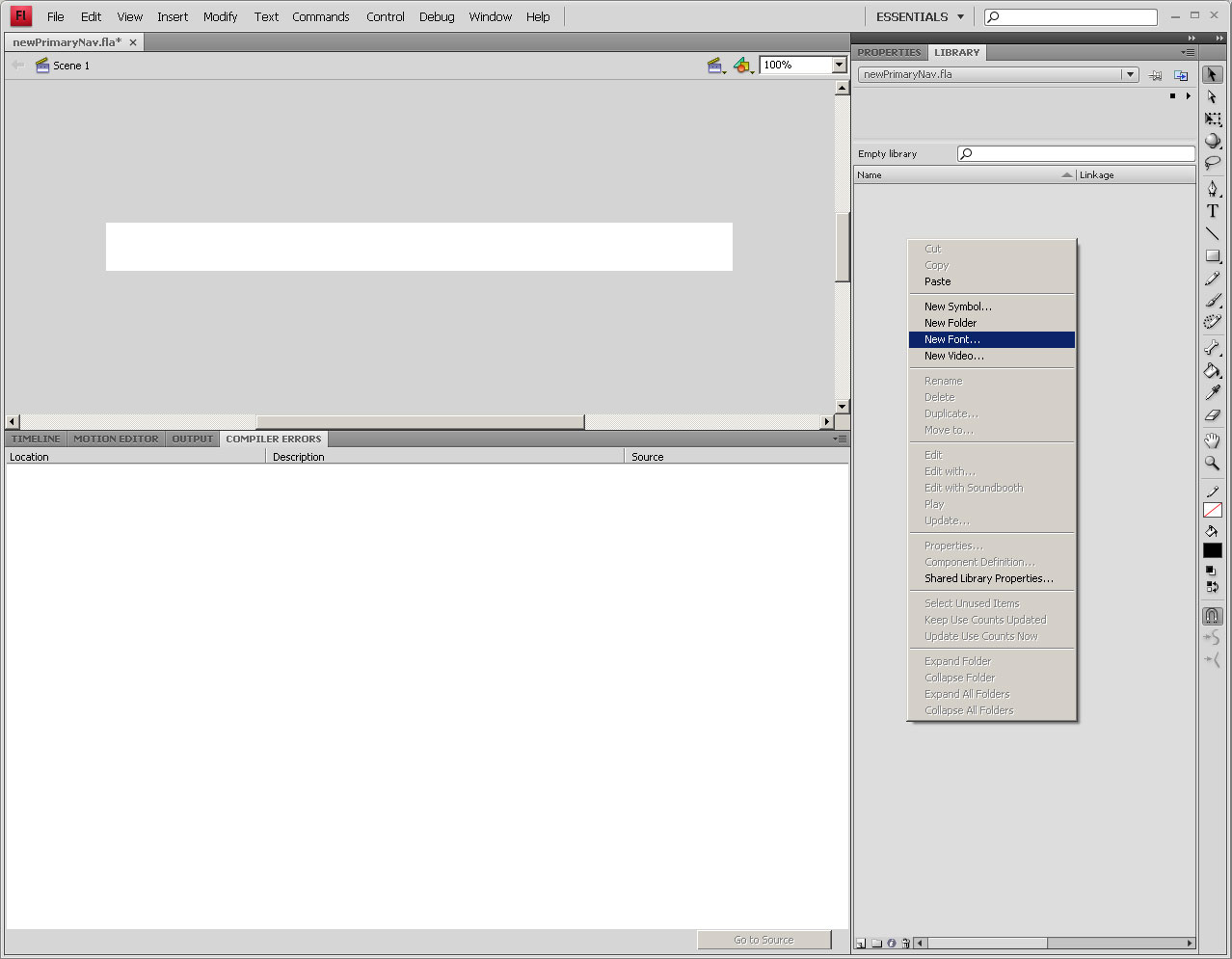
- In your FLA, select the library. Right click in the library area and select "New Font..." from the context menu.
|
| STEP 2 |
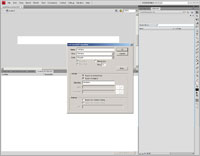
(Enlarge) |
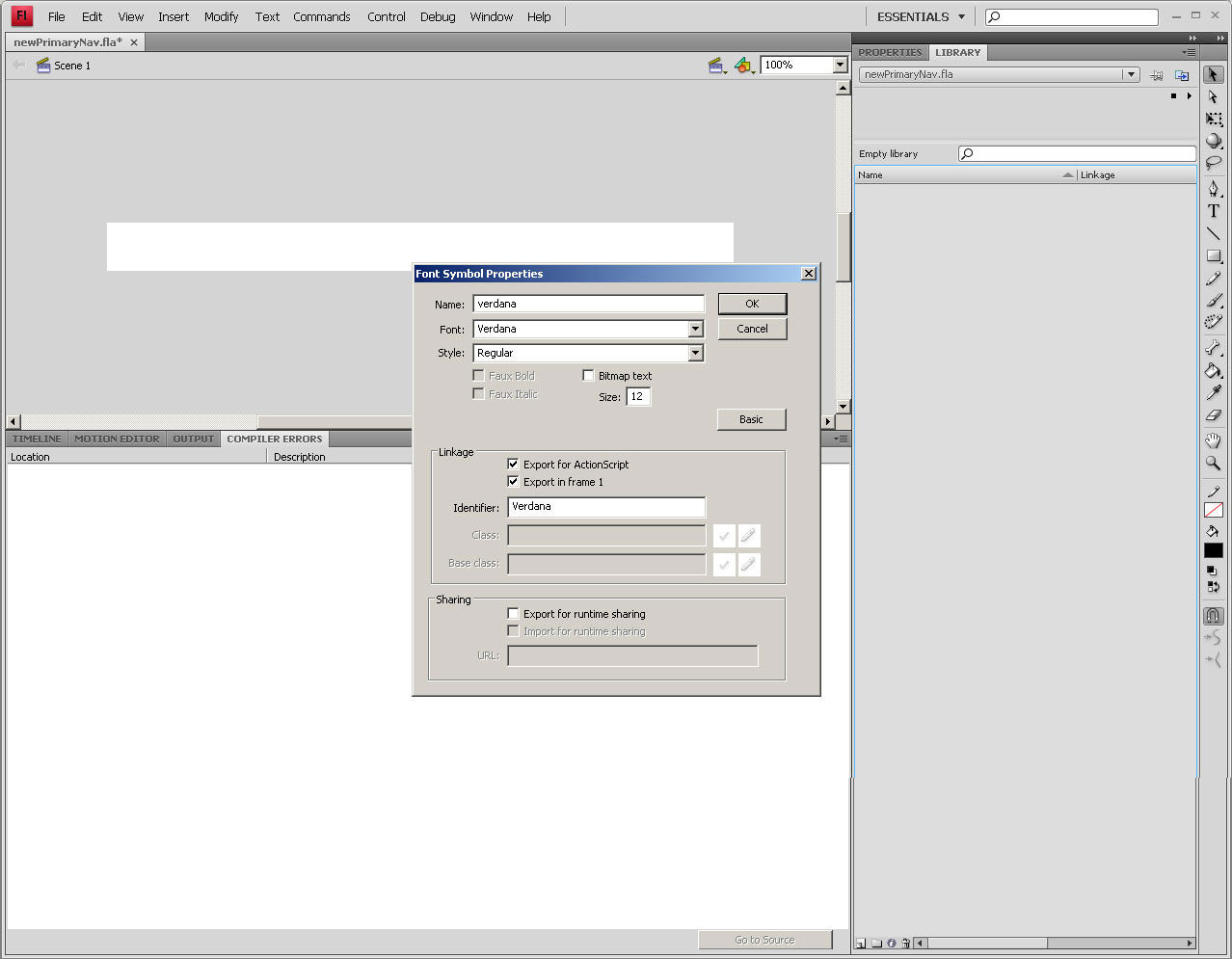
- Under "Font Symbol Properties", select the font and style. Be sure to provide a name. Under linkage, check "Export for Actionscript" and "Export in frame 1". Click "OK".
|
| STEP 3 |
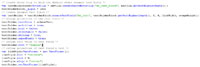
(Enlarge) |
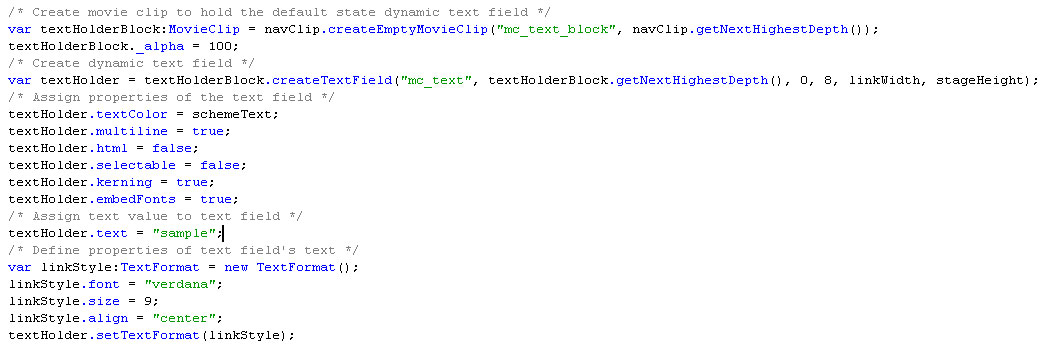
- Where you have created the text field in a movie clip (to hold the text field), be sure to add your-dynamic-text-field-name.embedFonts = true;. This will enable applying alpha (transparency) to the movie clip and have that alpha effect the text field. Be sure to reference the font and size under your usage of new TextFormat(); and attach that to the dynamic text field, i.e. "your-dynamic-text-field-name".
|
| STEP 4 |

(Enlarge) |
- Finally, to use alpha (transparency) on the text field contained inside of the movie clip, target the movie clip and apply the alpha using a tween. If you have not already, be sure that the following two lines are contained at the top of your FLA actionscript:
import mx.transitions.Tween;
import mx.transitions.easing.*;
|